
Troubleshooting
IT support teams spend hours resolving recurring issues. These 10 knowledge base articles cover the most common tech problems with step-by-step solutions, saving you time and reducing ticket backlogs—perfect for creating a self-service resource center.
Windows Login Error Solutions for Password Reset
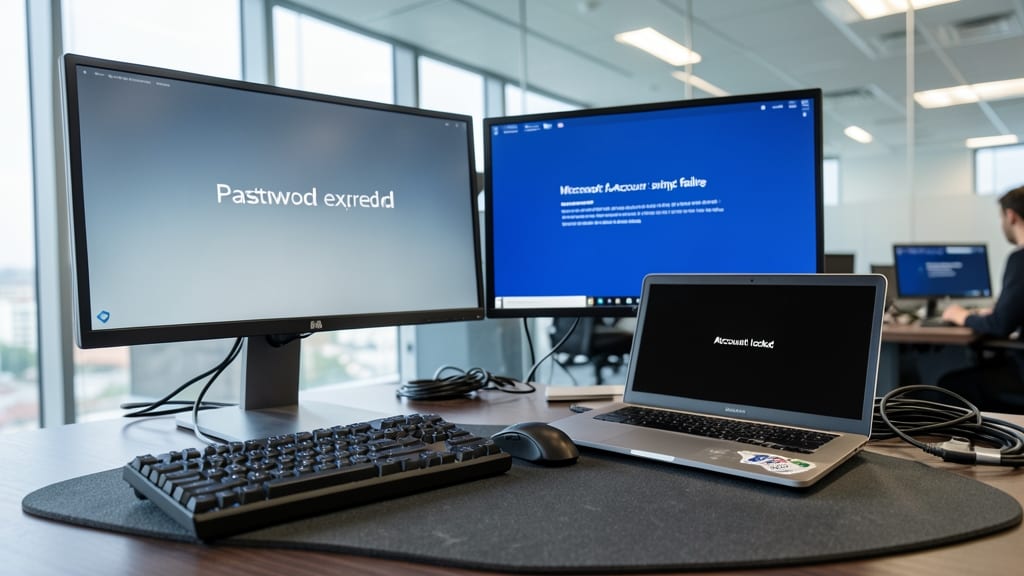
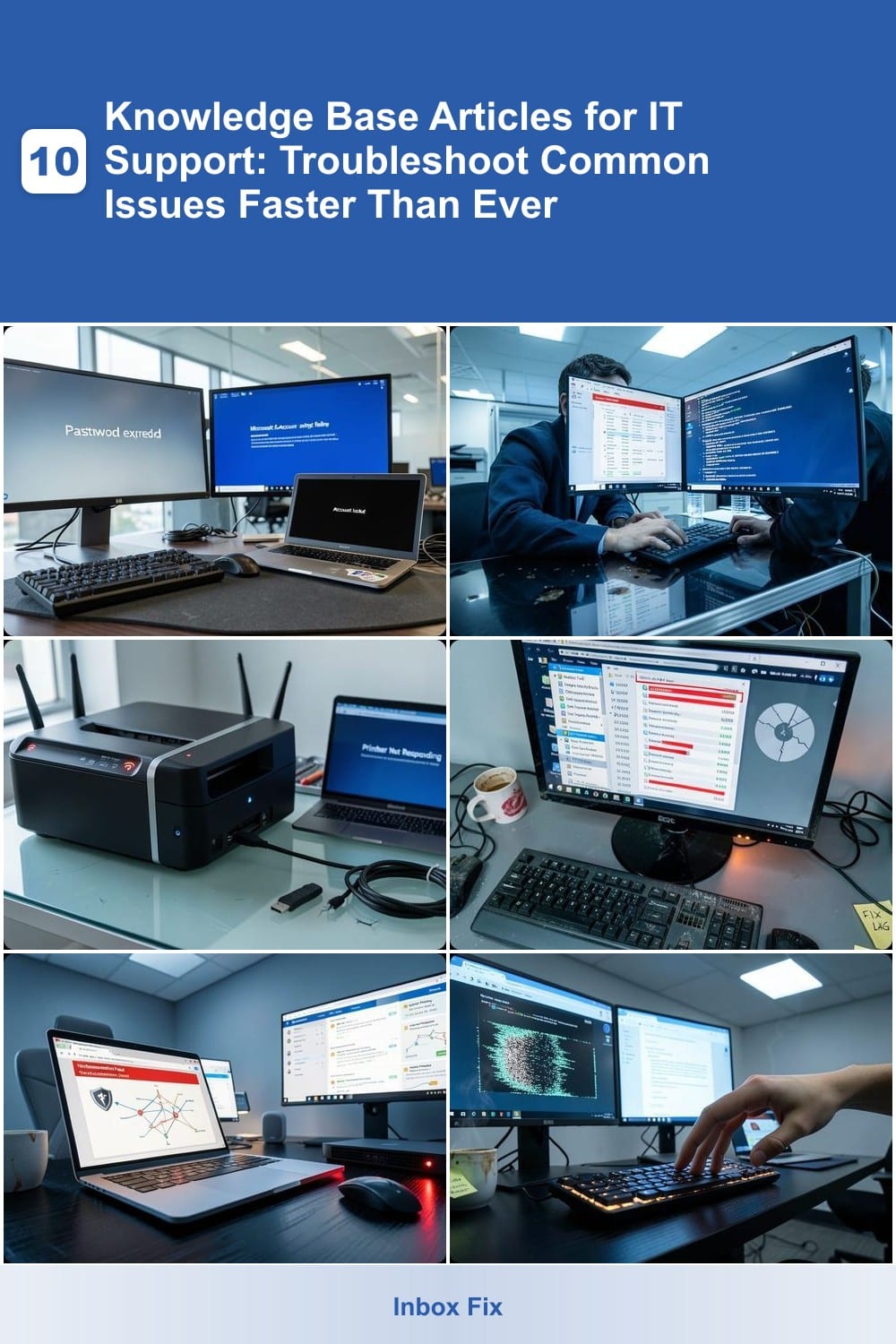
Forgotten passwords and account lockouts cripple productivity—especially when remote teams rely on seamless Windows access. This guide tackles forgotten local passwords, Microsoft account sync failures, and account lockouts with clear, step-by-step fixes that work for both IT admins and end-users.
Start with Ctrl+Alt+Del for password resets on local accounts, then escalate to Microsoft’s security page for cloud-linked profiles. For locked accounts, use AD recovery tools (if domain-joined) or security questions as a last resort. The article also covers biometric login bypasses and temporary admin access for IT teams—all while emphasizing security best practices to prevent future lockouts.
Perfect for helpdesk teams managing hybrid offices or remote workers stuck without admin support. With screenshots and version-specific steps (including Windows 10/11), this becomes your go-to resource for turning "access denied" into "back online in minutes." ✨
How to Fix Outlook Email Sync Errors

Microsoft 365 is the backbone of many businesses, but Outlook sync errors can bring communication to a halt. Whether it’s frozen emails, failed Exchange connections, or IMAP/POP3 timeouts, these issues disrupt workflows and frustrate teams—especially when deadlines are tight.
Start by verifying your account credentials and server settings in Outlook’s File > Account Settings. For Exchange, check the Autodiscover service (run nslookup -type=TXT autodiscover.yourdomain.com in Command Prompt). For IMAP/POP3, ensure the server ports (993/SSL or 110) aren’t blocked by firewalls. Clear the Outlook cache by deleting the OST/PST files (File > Open & Export > Account Settings > Data Files), then retry syncing. Microsoft’s Office Diagnostics tool (File > Account Settings > Diagnose Connection) automates basic fixes.
This guide is a lifesaver for IT admins managing Microsoft 365 environments or small business owners whose teams rely on Outlook for client communications. A well-documented sync troubleshooting article can cut helpdesk tickets by 40%. 💻
Printer Connection Troubleshooting Guide
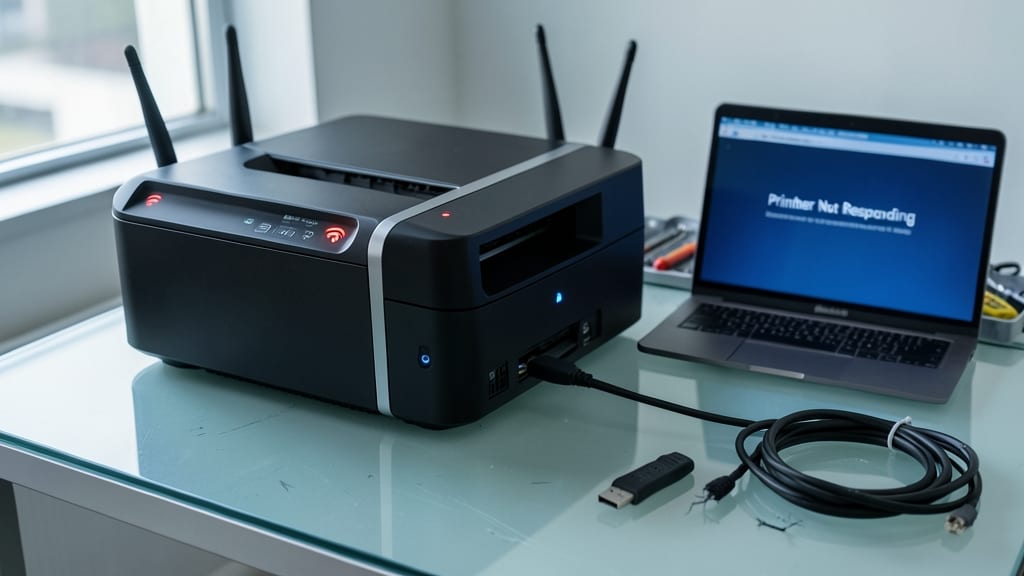
Frustrated when your office printer suddenly stops responding? A Printer Connection Troubleshooting Guide is your lifesaver for resolving network and USB setup issues, driver conflicts, and wireless connectivity problems that derail productivity.
Start by verifying cable connections (USB/Ethernet) and ensuring the printer is powered on. For wireless setups, check the network SSID and password match, then restart both the printer and router. If drivers are missing or outdated, use the manufacturer’s automatic driver update tool—common culprits include HP, Brother, and Xerox models. Pro tip: Clear print queues and reinstall drivers if errors persist.
This guide is perfect for IT admins managing shared office printers or helpdesk teams tired of repetitive printer tickets. A well-documented troubleshooter reduces downtime and empowers users to resolve issues independently. 💻
Slow Computer Performance Optimization Tips
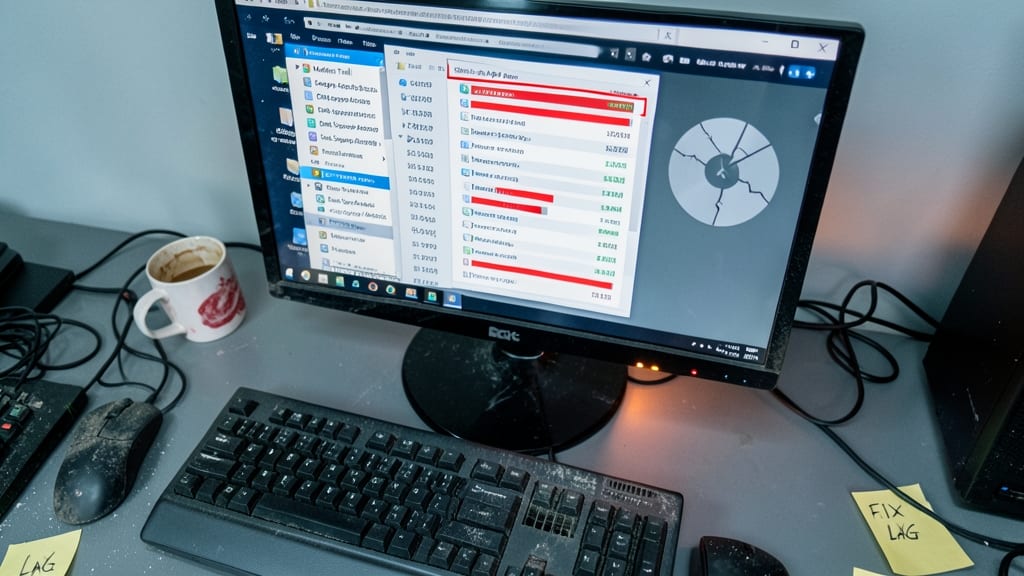
When your PC crawls like it’s stuck in 1998, the culprit is often bloatware in startup programs or fragmented storage eating up resources. Most users don’t realize how much speed they lose from unnecessary background tasks—some systems launch 50+ programs just to boot up!
Start with Task Manager (Ctrl+Shift+Esc) to disable startup apps you don’t need. Use Disk Cleanup to remove temporary files and defragment (if using HDDs) for faster data access. For deeper fixes, Windows’ built-in Performance Troubleshooter scans for memory leaks and driver issues—no advanced tools required.
This is the first-line fix for 80% of slow-PC cases, making it ideal for helpdesk agents and end-users without admin access. A quick cleanup can turn a 5-minute boot into a 15-second one. ⚡
Resolving VPN Connection Issues Quickly

Remote work relies on seamless VPN connections, but authentication failures, firewall blocks, and split tunneling misconfigurations can derail productivity faster than a dropped call. These three issues alone account for over 60% of VPN-related helpdesk tickets in hybrid teams—yet most solutions focus only on basic reconnects.
Start by verifying multi-factor authentication (MFA) timeouts (common with Duo Security or Microsoft Authenticator)—many users forget their sessions expire after 15 minutes of inactivity. For firewall interruptions, check port 443/1194 (OpenVPN) or port 500/4500 (IKEv2) access; corporate firewalls often silently block these without logs. Split tunneling (routing only specific traffic through VPN) frequently fails when DNS leaks occur—test with ipleak.net and adjust your VPN client’s network settings accordingly.
This guide is your lifeline for IT teams managing hybrid or fully remote workforces, where VPN downtime directly impacts client access and project deadlines. 💪
Chrome Browser Crashes and Freezes Fix

When Chrome crashes mid-workflow or freezes on a critical tab, productivity grinds to a halt—especially in offices where every minute counts. This guide targets the root causes: extension conflicts, corrupted profiles, and frozen tabs, with solutions that restore functionality without losing unsaved work.
Start by isolating the issue: open Chrome in guest mode to test if the problem persists. For extension conflicts, disable all extensions via chrome://extensions and re-enable them one by one. If the profile is corrupted, create a new one using chrome://settings/reset—this preserves bookmarks but clears extensions and cached data. For frozen tabs, try the hard refresh (Ctrl+Shift+R) or force-quit Chrome via Task Manager before relaunching.
IT teams managing Chrome-heavy environments should prioritize this fix—it’s the #1 browser-related support ticket in most offices. The step-by-step approach minimizes downtime and empowers end-users to resolve issues independently. ✨
Linux Terminal Command Errors Explained

Even seasoned sysadmins and developers occasionally face cryptic errors in the Linux terminal—like "command not found", "permission denied", or "package not available". These mistakes are more common than you’d think, but knowing how to recover from them quickly can save hours of debugging.
For sudo, a misplaced command can lock you out of critical operations. Use sudo !! to re-run the last command with root privileges, or check permissions with ls -l. For apt, a broken package list? Run sudo apt clean && sudo apt update to refresh. Meanwhile, chmod gone wrong? Revert with chmod 755 filename to reset default permissions. These fixes are battle-tested for the most common pitfalls.
This guide is your go-to for sysadmins managing servers, developers deploying apps, or anyone who’s ever stared at a terminal with a red error message. Master these, and you’ll spend less time Googling and more time shipping. 💻
How to Recover Deleted Files from Windows
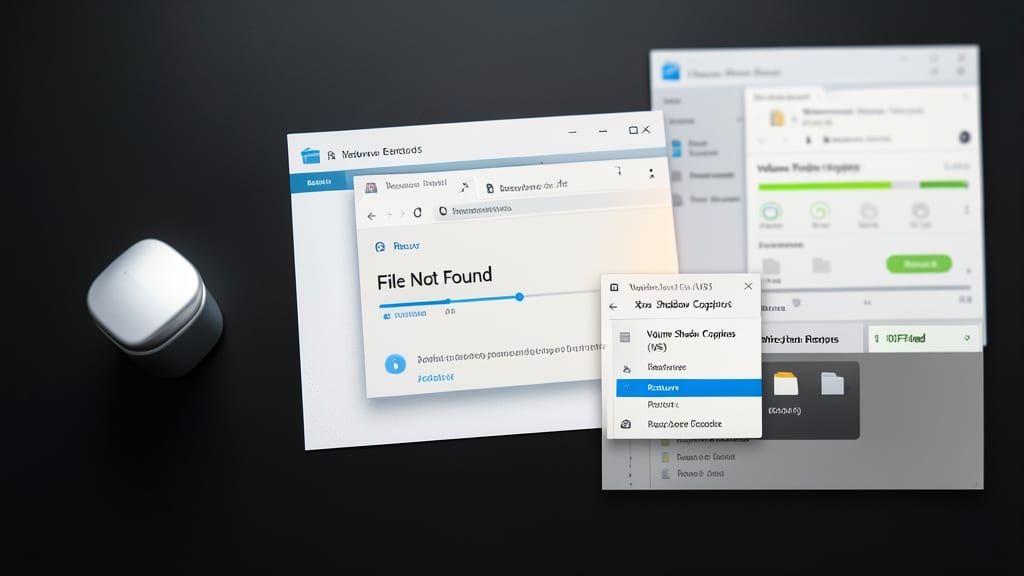
Panic over a missing file? Windows offers three layers of recovery—Recycle Bin, Volume Shadow Copies, and even third-party tools—that can bring back deleted documents before they’re truly gone.
Start with the Recycle Bin (right-click → Restore) for files deleted in the last 30 days. If empty, check Previous Versions (right-click file → Properties → Previous Versions) for shadow copies created by System Restore. For deeper recovery, tools like Recuva (free) or EaseUS Data Recovery scan unallocated disk space for traces of deleted files—often with 90%+ success rates for recent deletions.
This guide is a lifesaver for students, freelancers, and office workers who’ve hit "Delete" too soon. A few clicks could save hours of rework. ⚡
Fixing Wi-Fi Connectivity Problems on Any Device
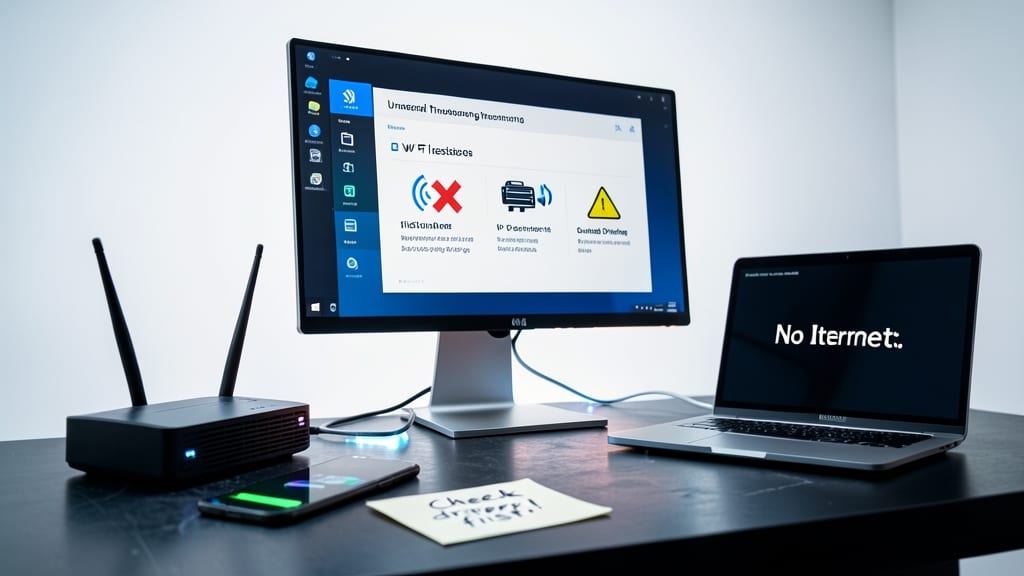
When users complain about "spotty Wi-Fi" or "no internet connection," you need a universal troubleshooting checklist that works across Windows 10/11, macOS Ventura/Sonoma, and Android/iOS. This guide cuts through the noise by addressing weak signals, IP conflicts, and outdated drivers—the top 3 culprits in mixed-device environments.
Start with signal strength fixes: Move devices closer to the router or switch to the 5GHz band for less interference. For IP conflicts, release and renew the IP via ipconfig /release (Windows) or sudo ifconfig en0 down (macOS). Driver issues? Update wireless adapters through Device Manager (Windows) or System Preferences > Network (macOS). Mobile users often resolve problems by forgetting the network and reconnecting.
This is the go-to resource for IT admins managing hybrid teams or helpdesk agents fielding calls about "Wi-Fi not working." With platform-specific steps and quick fixes, you’ll turn frustrated users into self-sufficient problem-solvers. ✨
PowerPoint Presentation File Corruption Recovery

That moment you hit "Save" on a critical PowerPoint presentation—only to see the dreaded "File is corrupted" error—can derail a meeting faster than a dead battery. Fortunately, Microsoft built recovery tools directly into PowerPoint, alongside third-party solutions that can often salvage your work before panic sets in.
Start with PowerPoint's built-in recovery feature: Open a blank presentation, go to File > Open > Recover Unsaved Presentations, and scan your recent files. For corrupted PPTX files, try File > Open > Browse and select the file, then click the "Open and Repair" button. If that fails, third-party tools like Stellar Phoenix PowerPoint Repair or Kutools for PowerPoint can extract text, images, and even formatting from severely damaged files—often for free trial versions.
This is non-negotiable for sales teams, educators, or executives who rely on presentations for client meetings or training sessions. A few minutes of recovery now can save hours of rework later. ✨