
Tip & Trick
Microsoft OneNote 2013 remains a powerhouse for digital note-taking, yet most users only scratch the surface of its capabilities. These 10 hidden tips and tricks will transform how you organize, search, and collaborate—unlocking productivity features you didn’t know existed.
Quick Capture with OneNote Clipper Browser Extension
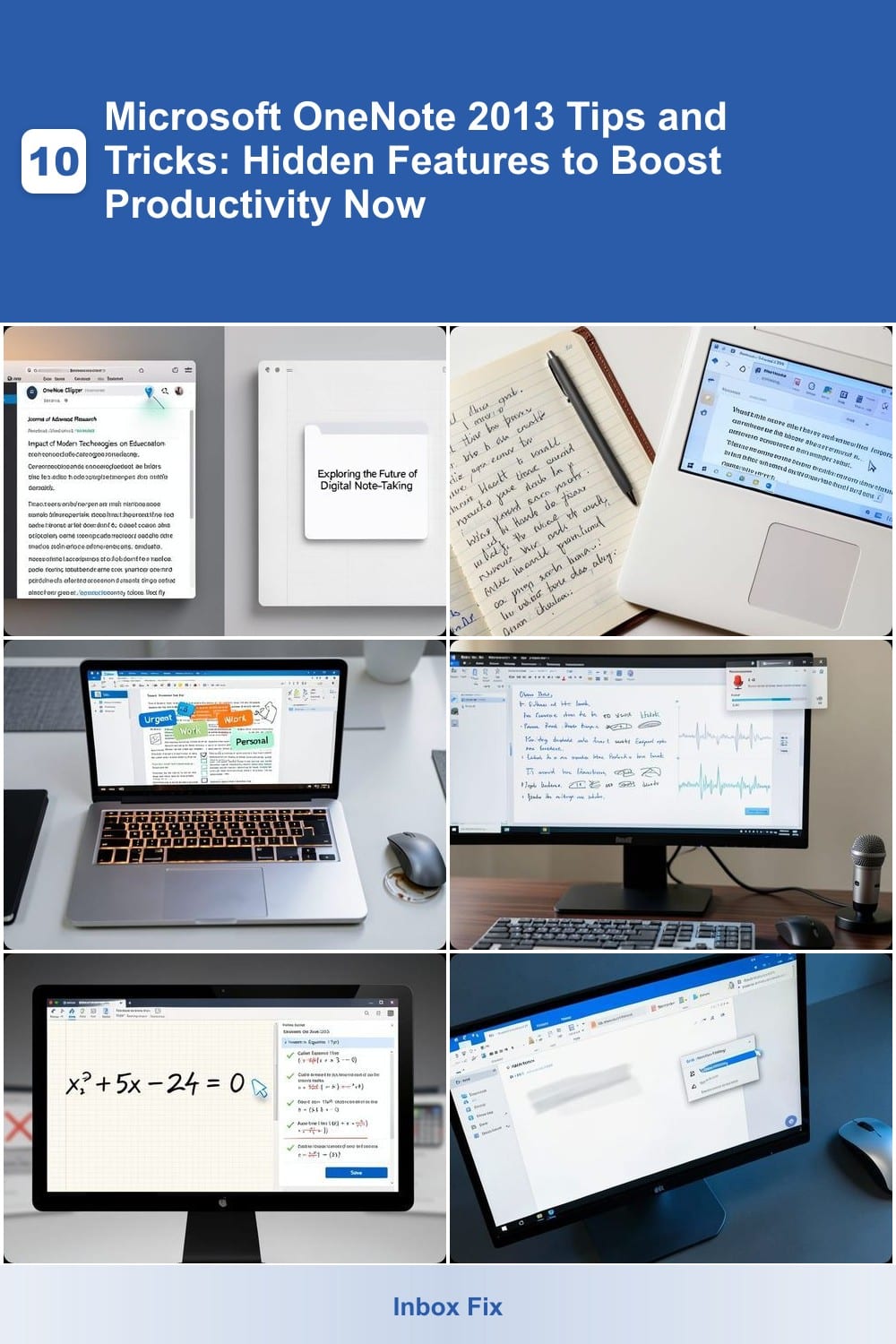
Tired of losing track of research articles or important web pages? The OneNote Clipper browser extension turns your browser into a one-click capture machine—no copying, pasting, or switching apps required. This lightweight tool integrates seamlessly with Chrome, Firefox, or Edge, letting you save entire web pages, selected text, or full-screen images directly into your OneNote notebooks with a single click.
Simply install the extension from the Microsoft Office Add-ins store, then click the Clipper icon in your browser’s toolbar. Choose to save the full page, a screenshot, or just selected text, and OneNote will organize it instantly. The extension even captures formatting, images, and links—perfect for researchers compiling sources or content curators building reference libraries. With zero setup, you’ll never lose another web resource again.
This trick is a game-changer for journalists, academics, and marketers who rely on digital research. No more messy bookmarks or scattered tabs—just clean, searchable notes at your fingertips. ⚡
Handwriting to Text Conversion for Notes
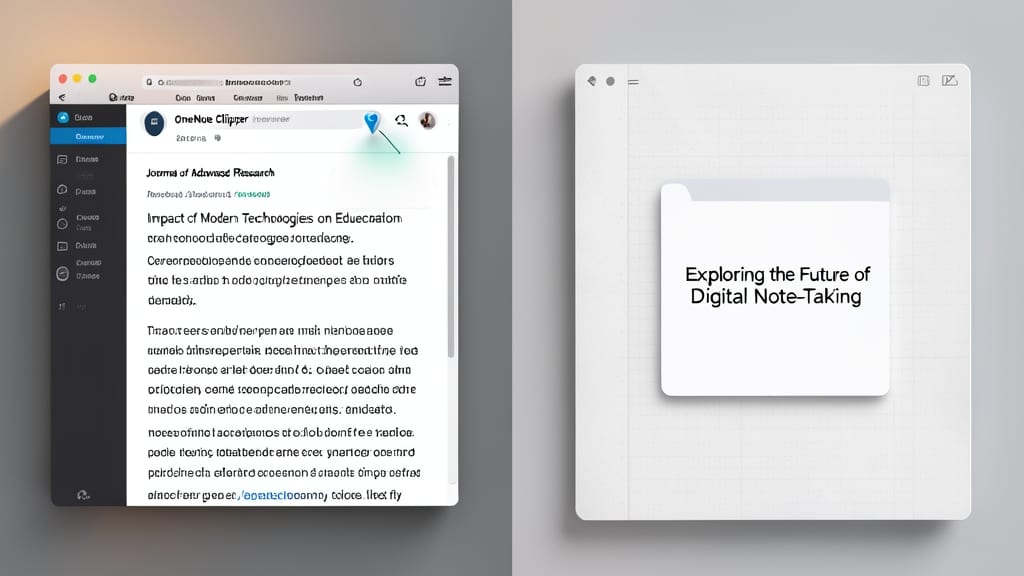
Still scribbling in notebooks but wish those handwritten ideas were instantly searchable? OneNote 2013’s built-in OCR (Optical Character Recognition) converts your handwritten notes into editable text with just a few clicks—no third-party apps needed. Simply write on your screen or paper, then use the Draw Tab > Ink to Text tool to transform your notes into digital, searchable content.
The feature works with both stylus input and printed text, recognizing handwriting with impressive accuracy. You can even edit the converted text directly in OneNote, making it perfect for lecture notes, meeting summaries, or brainstorming sessions. For tablet users, the ink-to-text conversion happens in real-time, syncing seamlessly with your digital workspace.
This trick is a game-changer for students transcribing class notes or professionals who mix analog and digital workflows. No more retyping—just write, convert, and organize instantly. ✨
Tagging System for Instant Note Organization
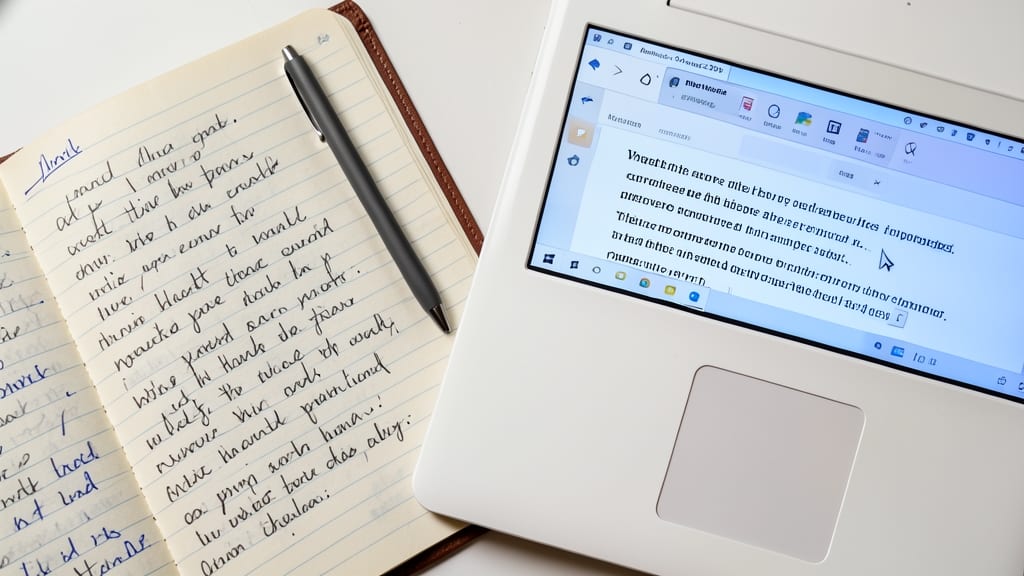
Drowning in digital clutter? OneNote 2013’s tagging system lets you ditch folders for a smarter approach—assign color-coded labels like "Urgent," "Work," or "Personal" to any note with a single click. Unlike rigid folders, tags let you categorize notes by multiple themes (e.g., a work note could be both "Client:XYZ" and "Priority:High").
Start by right-clicking a note and selecting "Tag"—choose from default colors or customize your own palette in the Tag Picker. Pro tip: Use red for deadlines, blue for projects, and green for brainstorming. Combine tags with search filters to pull up all notes tagged "Research" and "2023" in seconds. No more digging through nested folders!
This trick is a game-changer for freelancers juggling clients, students tracking assignments, or project managers coordinating teams. Say goodbye to the "Where’d I save that?" panic. ✨
Audio Recording Directly into Notes
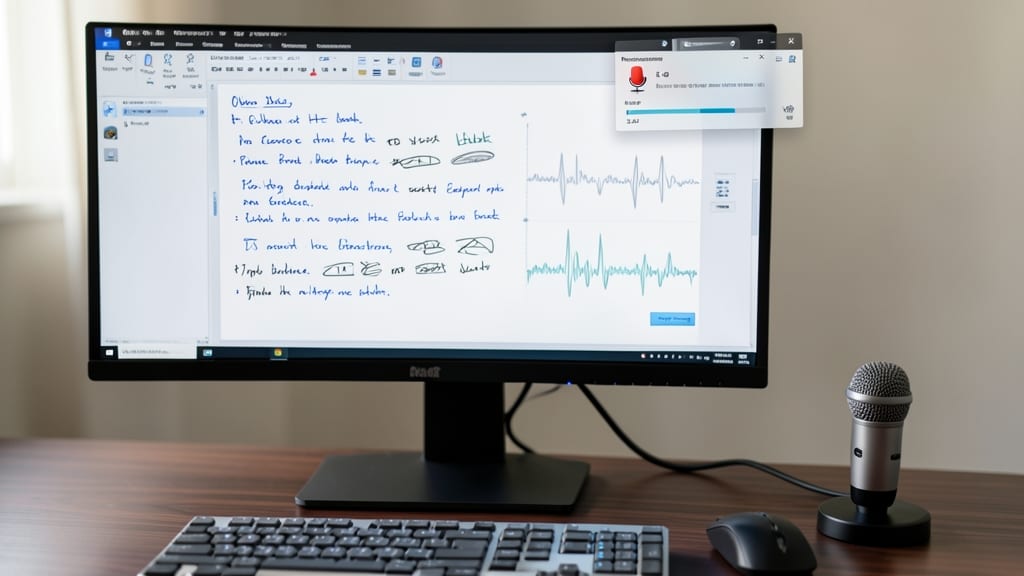
Forget juggling separate apps—OneNote 2013 lets you record audio directly into your notes with just a click. Whether you're capturing a brainstorming session, interviewing a colleague, or saving a lecture, this feature keeps everything in one place for easy review.
Simply press the audio recording button in the ribbon, and OneNote will embed the audio file as a playable note. You can even add timestamps to jump straight to key moments, making it perfect for interviews or meetings. The recordings sync seamlessly with your notebooks, so you never lose a thought.
Journalists, researchers, and educators will love this—no more scrambling for a separate recorder. Just press play and relive the conversation anytime. ✨
Math Equation Solver for Complex Problems
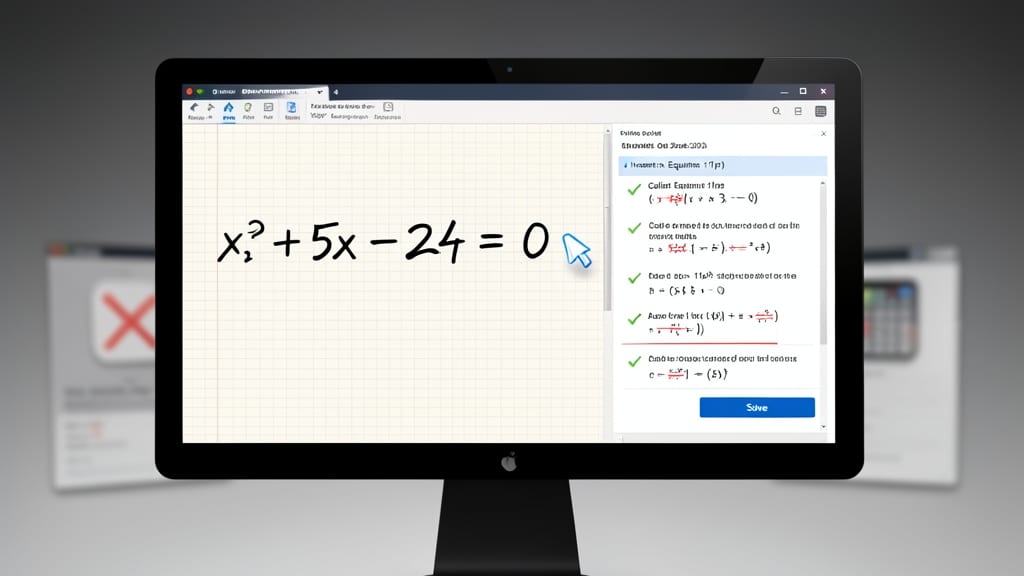
Struggling with complex math problems? OneNote 2013’s built-in equation solver turns your notes into an interactive workspace. Simply write an equation by hand or type it out, then tap the Insert > Equation tab to see step-by-step solutions—no external apps required.
The tool supports algebra, calculus, and linear equations, with automatic formatting for fractions, exponents, and matrices. For engineers, it even handles systems of equations and trigonometric functions, saving hours of manual calculations. Just draw your equation with a stylus or keyboard, and OneNote does the rest.
Perfect for students cramming for exams, data analysts modeling trends, or engineers prototyping solutions. No more flipping through textbooks—your answers are just a click away. ✨
Version History for Accidental Deletions
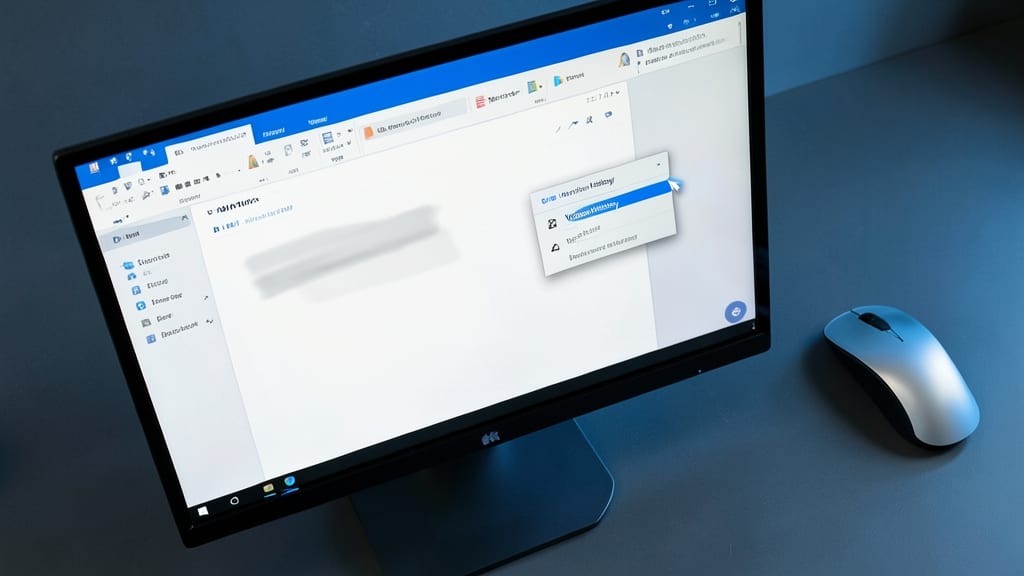
Ever hit "Delete" on a critical note and instantly regretted it? OneNote 2013’s version history acts like a digital time machine, letting you restore previous versions of any page—including deleted content—with just a few clicks.
Simply right-click a page or section, select "Version History", and browse through time-stamped snapshots of your notes. You can recover entire pages or even specific edits made hours (or days!) ago. The feature keeps up to 30 versions by default, though admins can adjust this limit. No more frantic searches for lost data—just hit "Restore" and watch your work reappear.
This is a lifesaver for project managers, students, or anyone who juggles multiple drafts. No more panic when you accidentally overwrite a meeting summary or research notes. ⚡
Printable OneNote Pages as PDFs
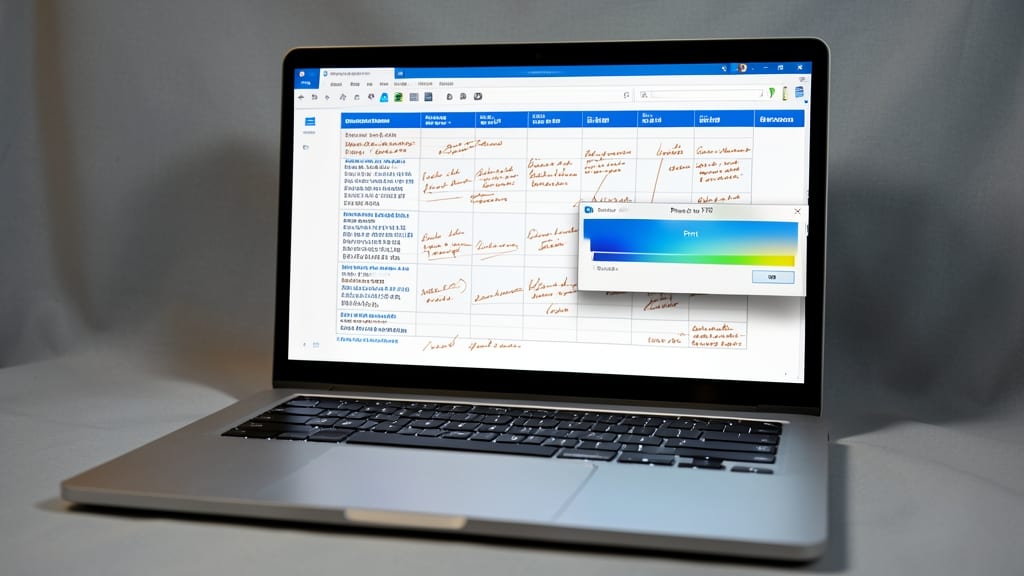
Need to share a perfectly formatted OneNote page but worried about compatibility? OneNote 2013’s PDF export feature lets you save entire pages—or even sections—as searchable, print-ready PDFs with a single click.
Simply right-click any page or section, select Print, choose Microsoft Print to PDF as your printer, and hit Print. The result? A crisp, faithful reproduction of your notes—complete with tables, drawings, and handwritten ink—ready for email, cloud storage, or archiving. No formatting loss, no compatibility headaches.
This trick is a lifesaver for project managers sending client updates, students submitting assignments, or archivists preserving research notes. No extra software needed—just built into OneNote 2013. ✨
Customizable Quick Notes Shortcut
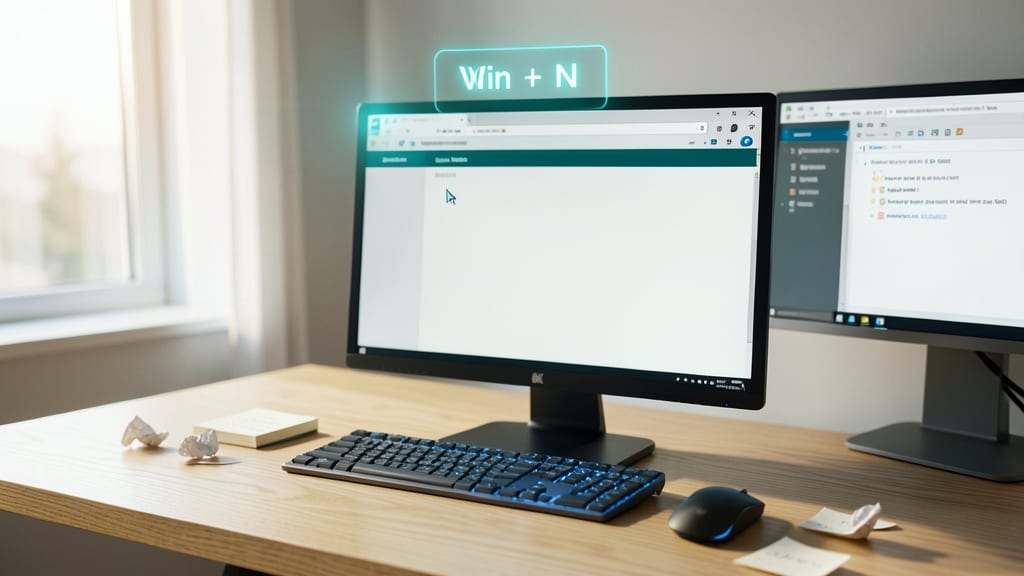
Ever lose a brilliant idea because you couldn’t open OneNote fast enough? The Quick Notes Shortcut feature lets you assign a global hotkey (like Win + N) to instantly launch a blank note—no menu diving required. This is your digital sticky note on steroids, ready to capture thoughts the moment they strike.
To set it up, head to File > Options > Advanced and enable the "Open Quick Notes" checkbox. Then, assign your preferred key combo under Keyboard Shortcuts. Once active, you’ll never miss a fleeting inspiration again. The notes even sync with your main notebooks, so they’re never truly lost.
Perfect for meeting attendees, writers, or anyone juggling multiple tasks—this trick turns OneNote into your instant thought-capture tool. ⚡
Drawing Tools for Diagrams and Mind Maps
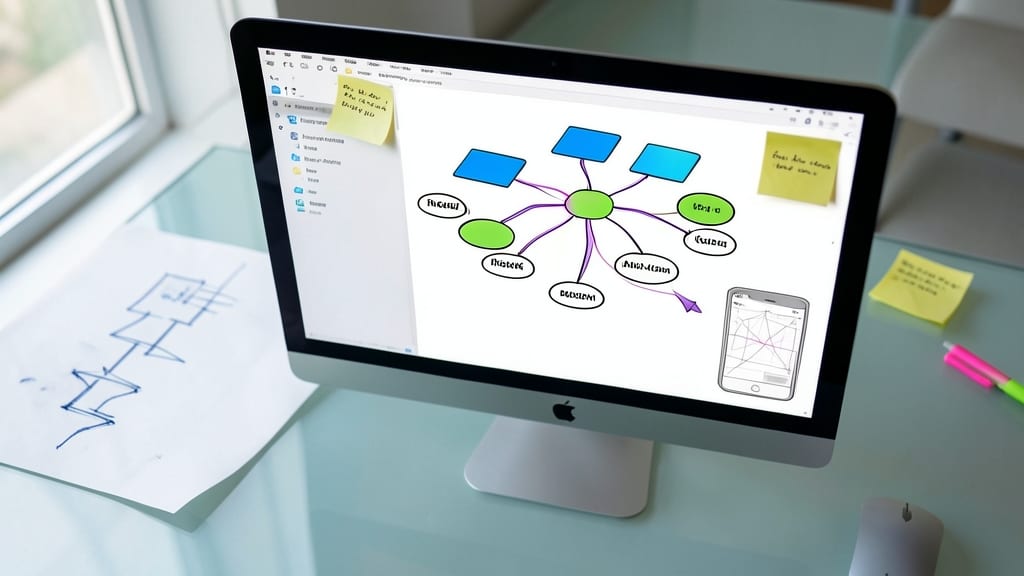
Skip the expensive diagramming software—OneNote’s built-in drawing tools let you create polished flowcharts, mind maps, and wireframes without leaving the app. The ink-to-shape feature instantly converts freehand sketches into crisp geometric shapes, while the sticky notes and highlighters add visual hierarchy to your diagrams.
With customizable line styles (dotted, dashed, or solid) and pre-loaded templates for basic diagrams, you can design professional-grade visuals in minutes. The zoom and pan functionality ensures precision, even when working on complex layouts. Plus, you can export your creations as images or PDFs for presentations or reports.
This trick is a game-changer for educators planning lessons, project managers mapping workflows, or developers sketching app prototypes. No subscriptions or complex setups—just pure, intuitive creativity. ✨
Offline Access with Local Notebooks

Ever found yourself stranded without internet access but needing to jot down critical ideas? OneNote 2013’s local notebooks let you work entirely offline—no syncing, no waiting, just seamless note-taking. This feature is a lifesaver for travelers, students in lecture halls, or anyone in areas with spotty connectivity.
To enable it, simply right-click your notebook in the navigation pane and select "Make Available Offline." Your notes stay fully functional, editable, and searchable without an internet connection. Once reconnected, changes sync automatically—no manual uploads required. The local storage also reduces cloud dependency, making it ideal for sensitive or proprietary information.
Perfect for field researchers, remote workers, or frequent travelers, this trick ensures your notes stay accessible no matter where you are. Never miss an idea again! ✨