
Outlook
Microsoft Outlook remains the gold standard for email management, but most users only scratch the surface of its capabilities. These 10 pro-level tips and tricks will transform how you handle emails, automate repetitive tasks, and reclaim hours in your workweek.
Quick Steps for Email Automation
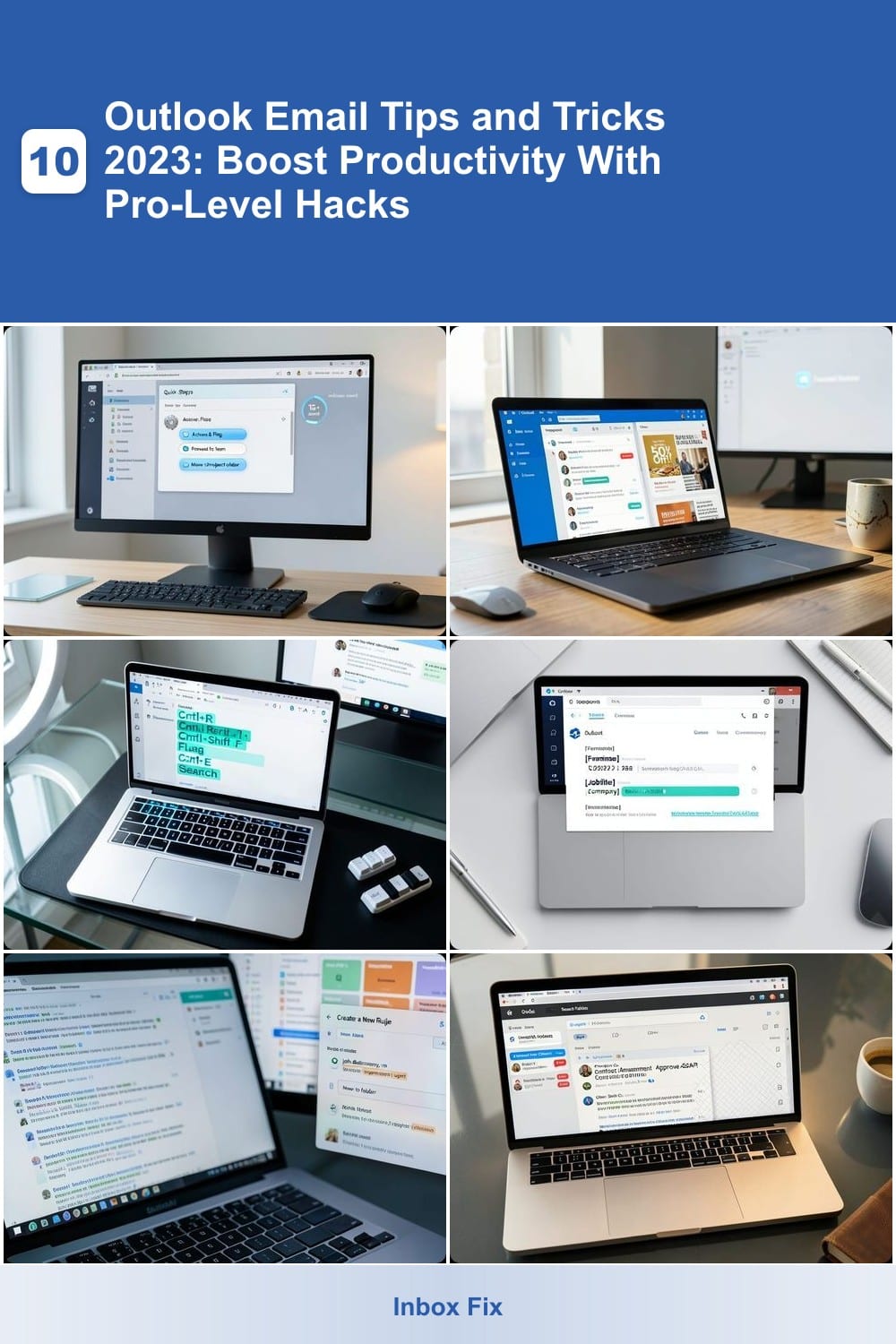
Tired of manually filing, forwarding, or flagging the same emails every day? Microsoft Outlook’s Quick Steps lets you create custom one-click actions to automate repetitive tasks in seconds. This hidden gem transforms mundane email chores into effortless workflows—saving you 15+ minutes daily without complex scripting.
With Quick Steps, you can set up buttons like “File Invoices to ‘Accounts Payable’”, “Flag Urgent Emails Red”, or “Forward Team Updates to Slack”. Each step combines actions (move, copy, flag, forward) and applies them instantly. The best part? You can even add conditions (e.g., “only if the subject contains ‘urgent’”) to refine automation further. It’s like having a personal email assistant built into Outlook.
Perfect for small business owners, project managers, or anyone drowning in repetitive emails, Quick Steps turns Outlook into a productivity powerhouse. Try it today and reclaim your focus! ⚡
Focused Inbox for Priority Management

Drowning in a sea of emails but struggling to spot what truly matters? Outlook’s Focused Inbox uses AI to automatically sort your inbox into two sections: "Important" (time-sensitive or high-priority) and "Other" (newsletters, promotions, or low-priority threads). This feature learns your habits over time, ensuring critical messages like client updates or manager requests never get buried.
To enable it, go to View > Focused Inbox and toggle it on. Outlook will analyze your email patterns—like response times, sender frequency, and keywords—to refine its filtering. You can also manually move emails between tabs or train the system by marking messages as "Important" or "Ignore" for better accuracy. The best part? It syncs across devices, so your priority emails follow you from desktop to mobile.
Perfect for executives, project managers, or anyone juggling multiple priorities, this tool cuts decision fatigue by 40% by surfacing what needs action first. ⚡
Keyboard Shortcuts Master List
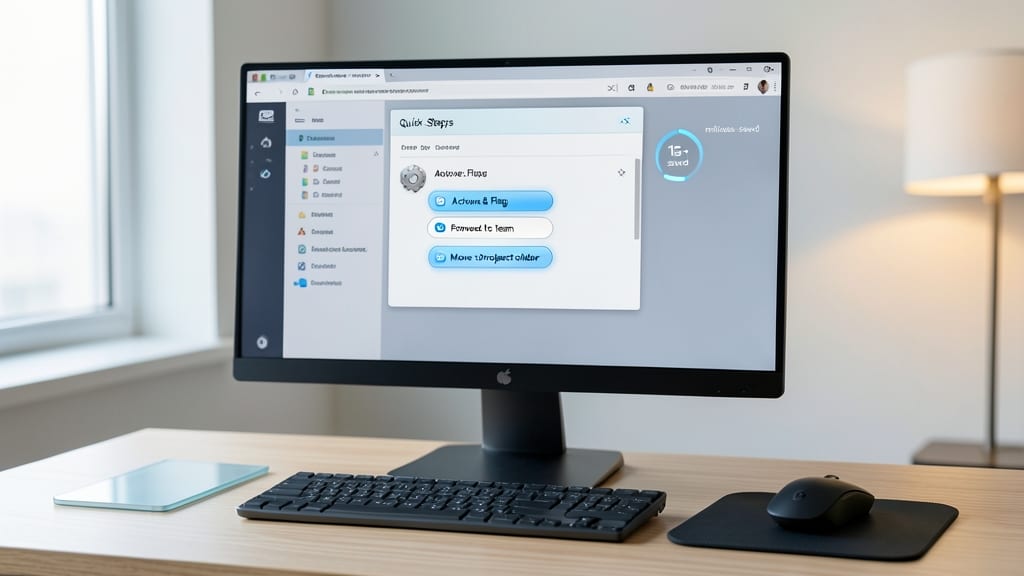
Tired of reaching for your mouse every time you need to reply, flag, or search in Outlook? Mastering 20 essential keyboard shortcuts can cut your email time by 30% or more—no mouse required. These shortcuts turn repetitive tasks into one-handed operations, making them ideal for power users, developers, or anyone with accessibility needs.
Start with Ctrl+Shift+I to instantly compose a new email, or use Ctrl+Y to reply to the last message you viewed. Need to jump between emails? Ctrl+Shift+A opens the Actions pane for quick flagging, categorizing, or forwarding. For organization, Ctrl+Shift+F opens the Find tool to search across folders, while Ctrl+Shift+E expands or collapses the Reading Pane. Pro tip: Alt+Enter opens the Properties window for metadata tweaks.
These shortcuts are a game-changer for remote workers, developers collaborating via email, or anyone who spends hours in Outlook daily. Bookmark this list and watch your workflow transform—no mouse, no hassle, just speed. ⚡
Email Signatures with Dynamic Fields
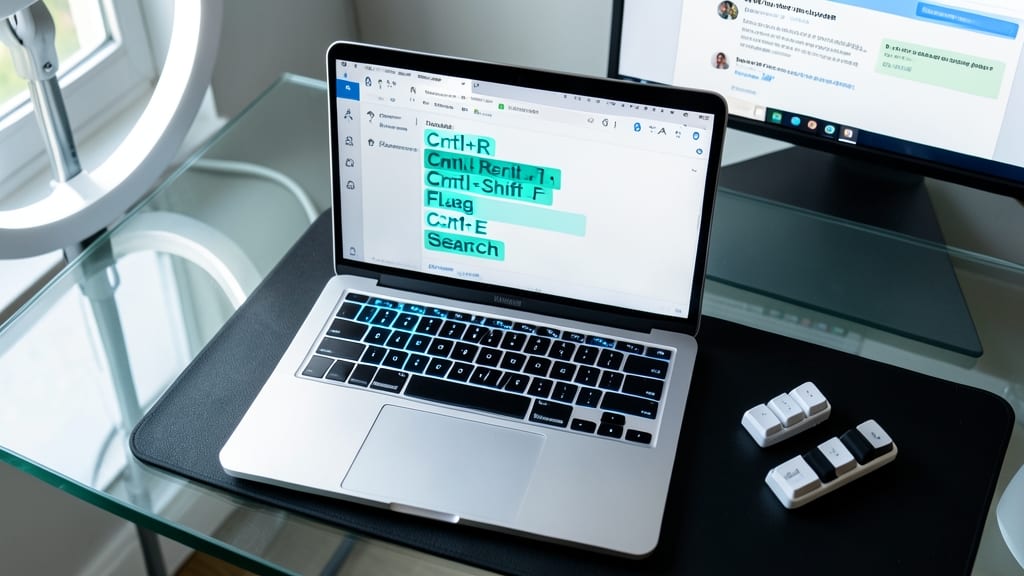
Tired of manually updating your email signature every time your job title or contact info changes? Outlook’s dynamic fields let you insert placeholders like [FirstName], [JobTitle], and [Company] that auto-fill from your Outlook profile—no copy-pasting required.
These fields sync across all your devices (desktop, mobile, web) and update instantly if your profile changes. Add a phone number or social media links that stay current without lifting a finger. Perfect for freelancers, recruiters, or anyone juggling multiple roles.
Consultants and sales teams will love this—no more outdated signatures slipping through. Just edit your profile once, and every email reflects your latest details. ✨
Rules to Auto-Sort and Categorize Emails
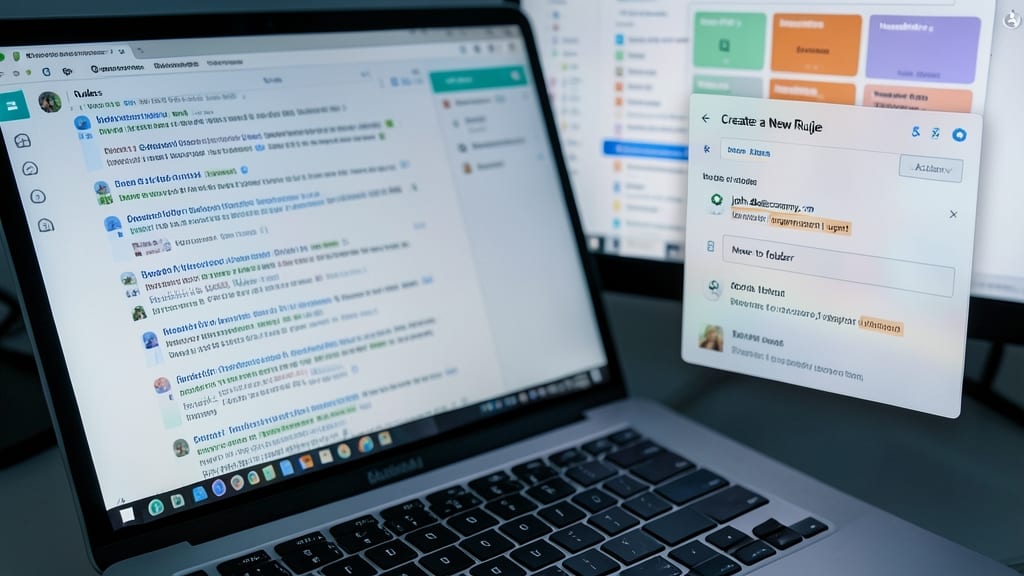
Drowning in a sea of unread emails? Outlook’s Rules feature lets you turn chaos into order with just a few clicks. Create automated filters that move emails to folders, apply custom colors, or even trigger notification sounds—all based on senders, keywords, or subjects.
Set up a rule to auto-color emails from your boss blue or move newsletters to a dedicated folder with zero effort. You can even configure rules to forward specific emails or play a distinct sound for urgent messages. The best part? These rules work across your desktop, web, and mobile apps, keeping your inbox organized no matter where you are.
Perfect for freelancers juggling clients, managers tracking projects, or anyone tired of manual sorting. Try one rule today and watch your inbox transform! ✨
Search Folders for Instant Email Tracking

Drowning in emails but missing critical updates? Search Folders in Outlook let you create dynamic, real-time filters—like "Unread from Clients" or "Project X Approvals"—that update automatically without manual sorting.
Set up rules using keywords, sender names, or flags (e.g., "Has attachment + From: @company.com"). These folders appear in your navigation pane like regular folders but pull from live searches—no clutter, just instant access to what matters most. Perfect for tracking deadlines or client threads without digging through your inbox.
Project managers and freelancers will love this for client communications or milestone tracking, while sales teams can monitor leads in real time. No setup required—just right-click your folder list and select "New Search Folder." ✨
Clean Up Conversation Threads Efficiently
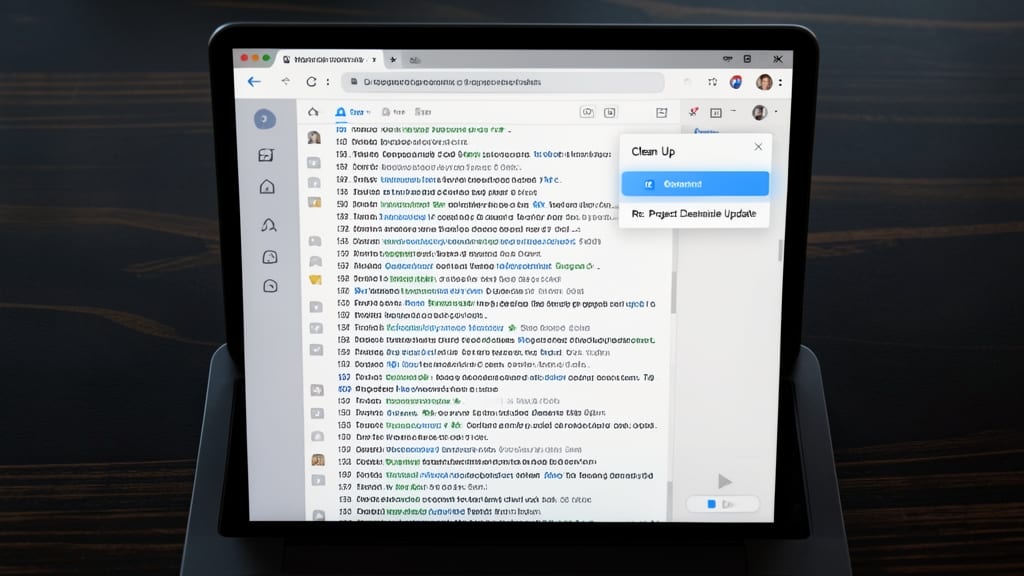
Tired of scrolling through 50+ message email chains that feel like a never-ending novel? Outlook’s Clean Up tool is your secret weapon for reclaiming clarity in chaotic discussions. With just one click, you can collapse the entire thread into a single message—keeping only the most recent reply visible while preserving all context.
For even more control, use the Remove Messages option to delete specific replies while keeping the thread intact. This is especially useful for teams dealing with long, meandering discussions where only a few key points matter. The tool works instantly and doesn’t require any setup—just right-click the thread and select Clean Up.
Perfect for project managers, customer support teams, or anyone drowning in back-and-forth emails, this feature turns cluttered inboxes into streamlined communication hubs. ⚡
Voting Buttons for Polls in Emails
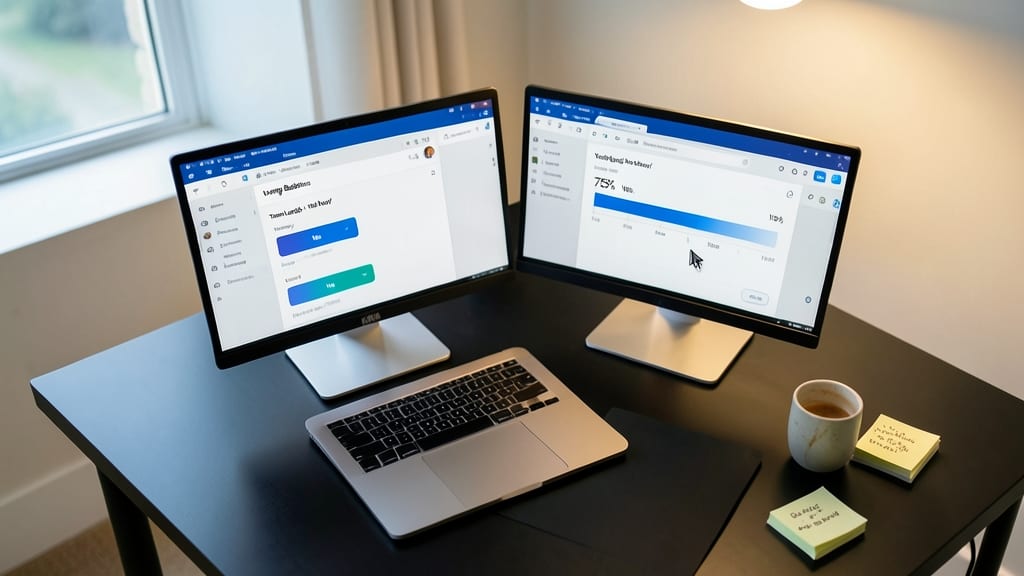
Tired of back-and-forth emails to settle simple decisions? Outlook’s voting buttons turn your inbox into a live poll—no third-party tools needed. Whether you’re planning a team lunch or gathering quick feedback, this feature lets you embed Yes/No buttons (or custom options) directly in emails, with real-time results visible to everyone.
Setting it up takes seconds: Compose a new email, click the Insert tab, and select Voting Buttons. Recipients vote instantly, and you’ll see a summary of responses—no follow-ups required. Works seamlessly with Outlook for Windows, Mac, and mobile, so your team stays aligned without switching apps. The best part? No extra software or complicated workflows. ⚡
Focused Inbox for Mobile Users
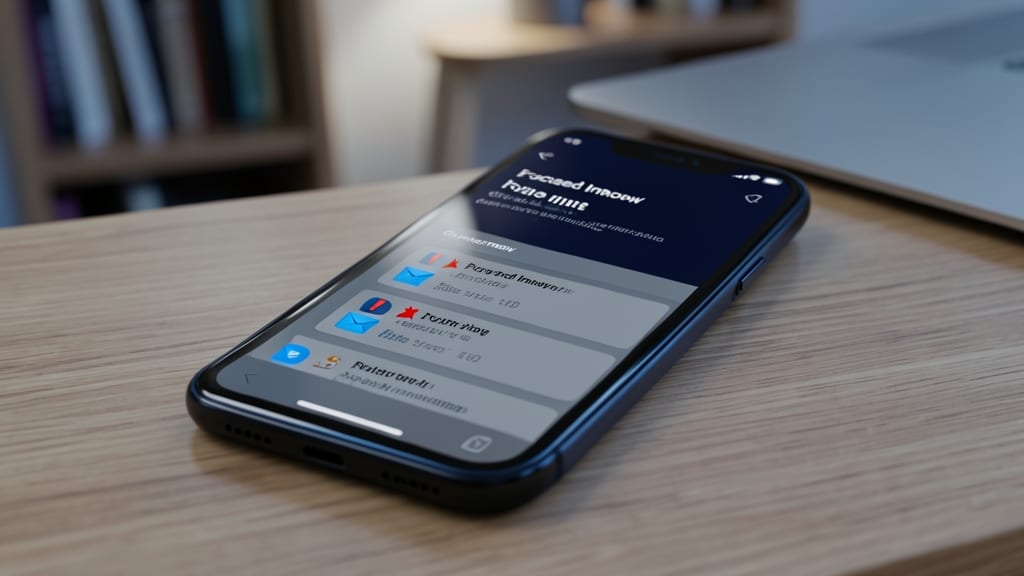
Tired of missing critical emails while your phone stays silent? Outlook’s mobile Focused Inbox ensures you never overlook what matters—even when notifications are off. This feature intelligently surfaces high-priority messages at the top of your inbox, so you can respond quickly without the chaos of constant alerts.
To enable it, tap the three-dot menu in the Outlook mobile app, then select Focused Inbox. The app will learn your patterns over time, flagging emails from key contacts or with urgent keywords. You can also manually move messages to the Focused Inbox by swiping right—perfect for clients or projects that demand immediate attention.
This trick is a game-changer for remote workers, executives, or anyone juggling multiple priorities. Now you can stay organized without the distraction of endless pings. ✨
Recurring Meeting Requests with Auto-Accept
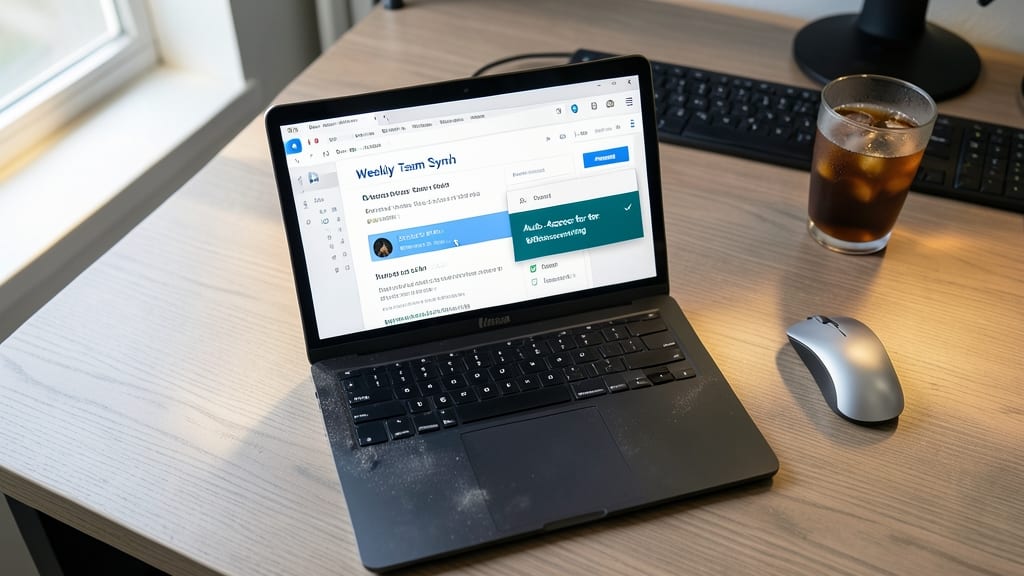
Tired of manually accepting the same weekly meetings over and over? Outlook’s auto-accept for recurring invites lets you set it-and-forget-it for meetings like standups or team syncs—saving 10+ minutes per week without sacrificing professionalism.
Here’s how it works: Right-click a recurring meeting in your calendar, select AutoAccept, and choose Accept or Tentative. Outlook will automatically respond to future invites from the same sender, even if details change. You can also set exceptions (like blocking a specific date) without breaking the rule. For extra control, use Quick Steps to batch-accept multiple meetings at once.
This is a game-changer for executives, managers, and remote teams drowning in recurring invites. No more forgetting to accept—or worse, missing a critical meeting. ⚡