
PowerPoint
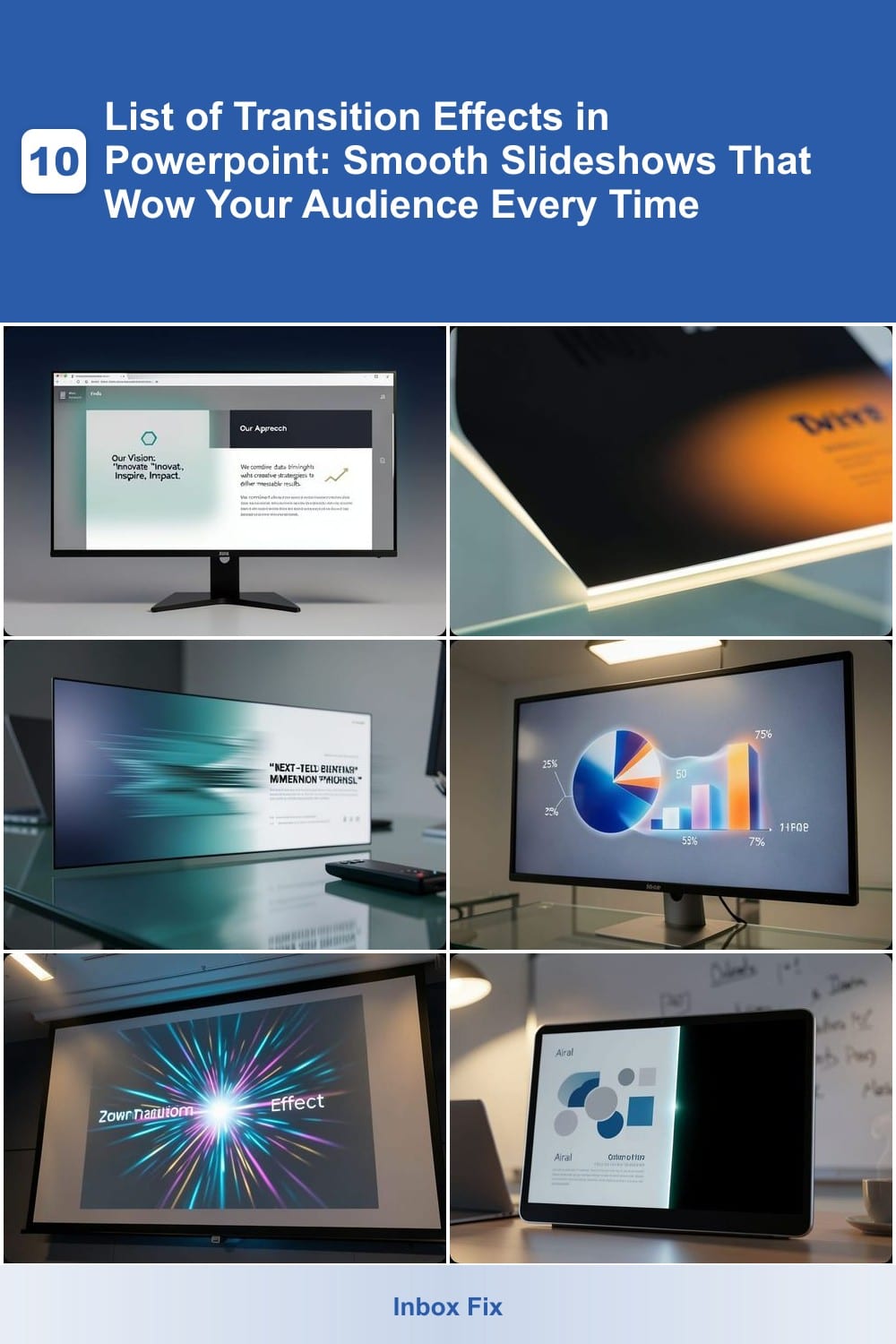
Want to create professional PowerPoint presentations that captivate your audience? These seven transition effects will elevate your slideshows from basic to breathtaking, ensuring smooth, polished visual storytelling every time.
Fade Slide Transition Effect
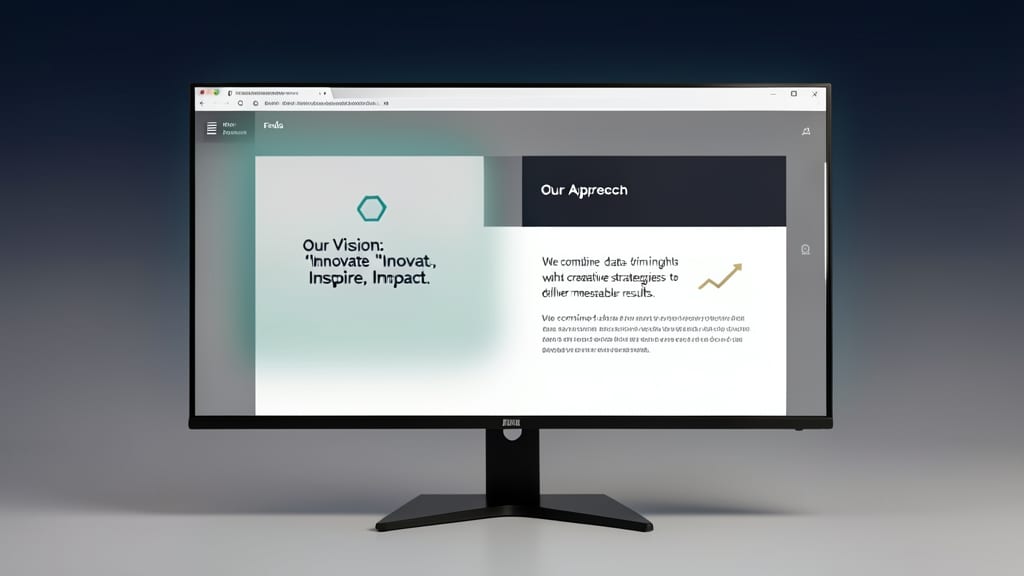
The Fade Slide Transition Effect is PowerPoint’s most universally trusted transition—simple yet sophisticated, it ensures your content stays the star while maintaining a polished, professional look. Available in PowerPoint 2016, 2019, and 365, this effect smoothly dissolves one slide into the next without visual distractions, making it perfect for high-stakes presentations where clarity is non-negotiable.
You can customize the transition speed (slow, medium, or fast) and add a subtle sound effect for emphasis, though most professionals opt for silence to keep focus on the message. Unlike flashier effects, the fade works seamlessly across all slide layouts—whether you’re presenting financial data, academic research, or corporate updates—and pairs effortlessly with minimalist designs.
Ideal for boardroom pitches, academic lectures, or client meetings, the fade transition exudes confidence without overpowering your content. It’s the go-to choice for presenters who prioritize subtlety and professionalism over flashy animations. ✨
Wipe Right Transition Effect
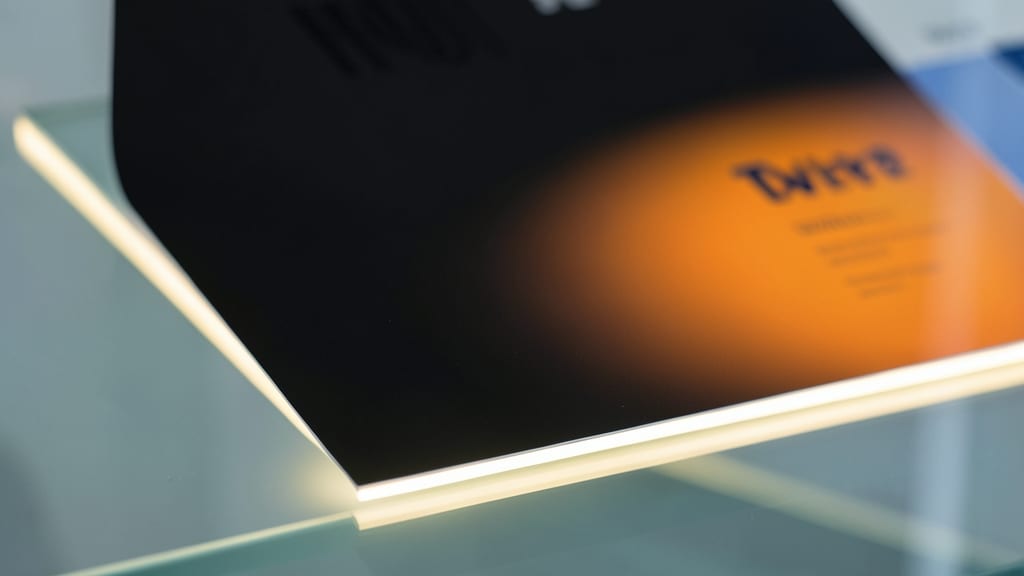
Need to guide your audience through a story with purpose? The Wipe Right Transition Effect turns your slideshow into an interactive experience by simulating the natural flow of turning a physical page. Unlike static fades, this directional wipe creates a subtle yet intentional movement that keeps viewers engaged with your narrative progression.
Available in PowerPoint 2013 and later, this effect works best with horizontal layouts and pairs perfectly with sequential storytelling. Adjust the speed to control pacing—too fast feels rushed, while a moderate 3-4 second duration maintains professionalism. For extra polish, combine it with a right-to-left wipe for closing slides to create symmetry.
Perfect for educators, marketers, or creatives who want to emphasize sequence and flow without overwhelming the audience. Just avoid overusing it—one wipe per section keeps the focus on your content. ✨
Push Transition Effect
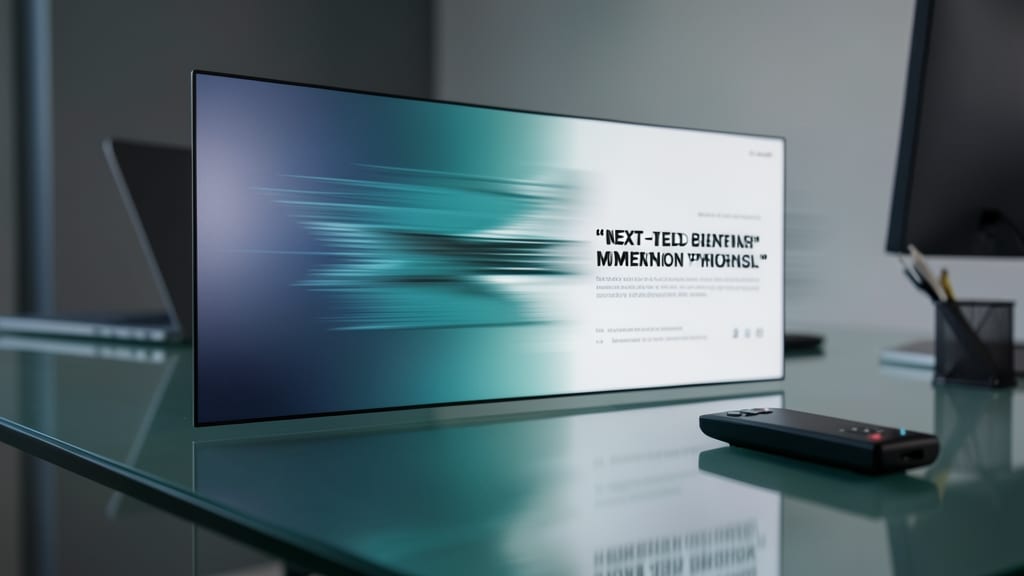
Need to make your audience feel like they’re moving forward with your ideas? The Push Transition Effect delivers that "next-level momentum" with a sleek, forward-motion animation that pushes the current slide off-screen while revealing the next.
Available in PowerPoint 2013 and later, this effect works best with subtle timing adjustments (try 1-2 seconds) to avoid overwhelming your content. It’s perfect for motivational slides or sales pitches where you want to visually reinforce progress—like moving from "problem" to "solution." Pro tip: Pair it with a bold color scheme to make the directional movement pop even more.
Sales teams and coaches love this effect for its energetic yet polished feel, making it ideal for presentations where you want to keep the audience engaged and excited about what’s coming next. ✨
Morph Transition Effect
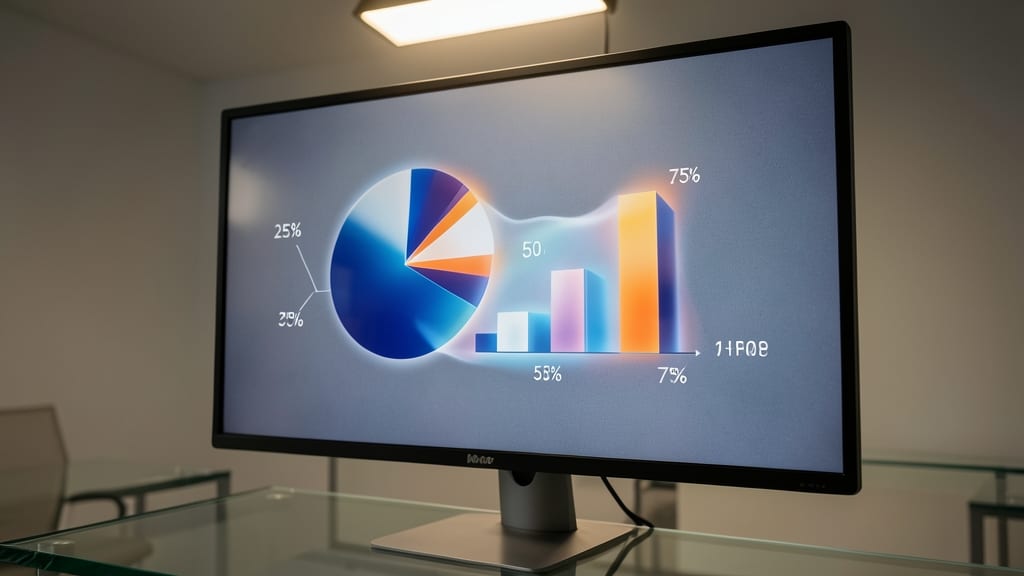
Tired of static slides that make data feel lifeless? The Morph transition in PowerPoint turns your charts and graphs into dynamic visual stories by smoothly transforming one element into another. Unlike basic fades or wipes, this effect preserves your content while creating an elegant, almost liquid transition—ideal for comparing trends or evolving concepts.
Available in PowerPoint 2019 and Microsoft 365, Morph works best with objects like shapes, charts, and text boxes. The shape-shifting magic happens automatically when you animate changes between slides, letting you emphasize connections between data points without disrupting flow. For example, morph a pie chart into a bar graph to show shifting market share—your audience will notice the sophistication without needing to decode complex animations.
This is the go-to choice for analysts, educators, and marketers who need to present complex data with elegance. Just ensure your objects are properly aligned for the smoothest results. ✨
Zoom Transition Effect
Need to make a slide pop during your keynote? The Zoom Transition Effect delivers a cinematic punch by scaling your slide outward from the center, instantly drawing eyes to key moments. Unlike subtle fades or directional wipes, this effect mimics the "zoom-in" energy of a movie reveal, turning ordinary slides into visual highlights.
Available in PowerPoint 2016 and later, this transition works best with high-contrast backgrounds to maximize impact. Adjust the speed (0.5s–5s) to control drama—faster zooms feel urgent, while slower ones create anticipation. Pro tip: Pair it with bold typography or striking visuals to amplify the effect without overwhelming your audience.
Perfect for product launches, conference keynotes, or creative pitches, this transition turns your presentation into an experience. Just don’t overuse it—save it for slides that deserve a spotlight! ✨
Split Transition Effect
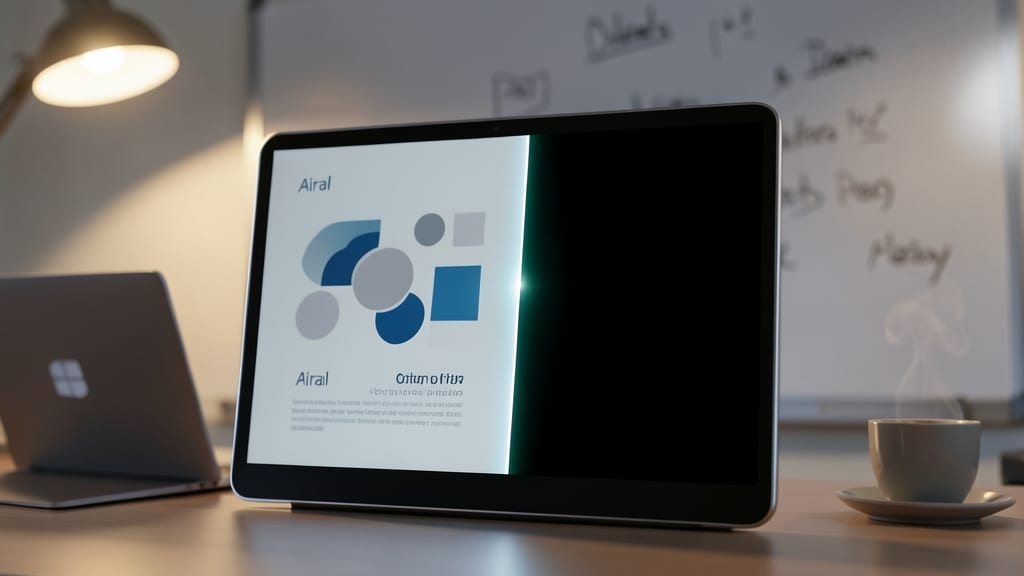
Need to make your audience lean in and wait for the big reveal? The Split transition effect delivers that suspenseful moment by dividing your slide vertically or horizontally before revealing the next content.
Available in PowerPoint 2016, 2019, and 365, this effect lets you control the split direction (left/right or top/bottom) and speed for maximum impact. Pair it with a dramatic pause in your narration, and you’ll create a cinematic feel—ideal for product launches, creative pitches, or any moment where anticipation boosts engagement.
Perfect for marketing teams, designers, and storytellers who want to turn slideshows into mini-movies. ⚡
Random Bar Transition Effect
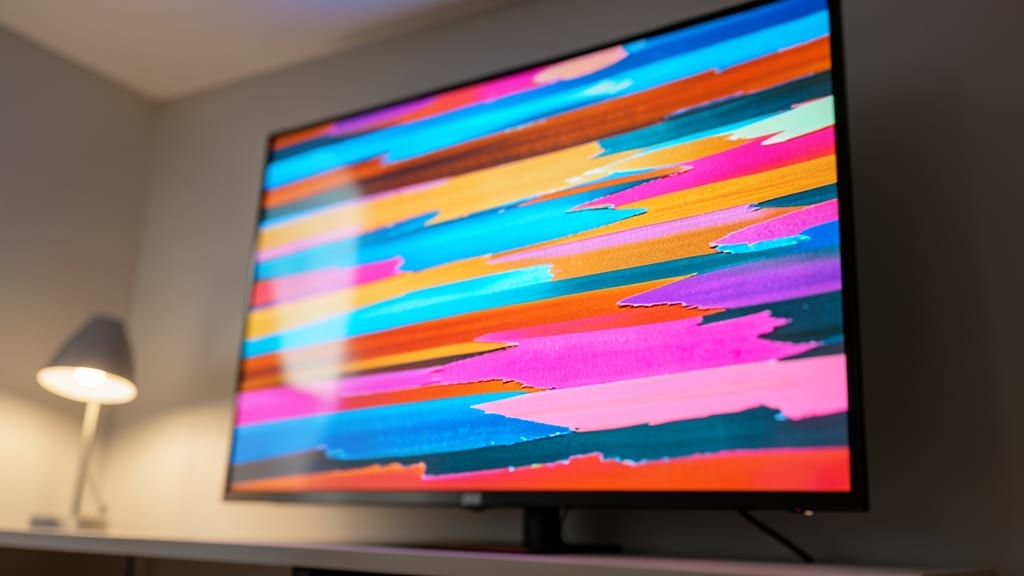
Tired of predictable slide transitions? The Random Bar Transition Effect injects playful energy into your presentations by revealing content through shifting, multicolored horizontal bars. Unlike rigid directional effects, this one feels organic and dynamic, making it perfect for creative fields like design, advertising, or storytelling.
Available in PowerPoint 2013 and later, this effect lets you customize the bar colors, speed, and direction for a truly unique look. The randomized bar movement creates a sense of spontaneity, while the ability to sync with audio ensures your transitions feel intentional. Just avoid overusing it—one or two strategic placements will leave a lasting impression.
Ideal for artists, marketers, and educators, this transition shines when you want to stand out without sacrificing polish. Use it to highlight key moments in your pitch or portfolio—just don’t let it overshadow your content. ✨