
Software
Microsoft Teams channels can transform collaboration—but only if used strategically. These 10 best practices help teams organize workflows, reduce clutter, and boost productivity with intentional channel design and management.
Standardize Channel Naming Conventions For Clarity
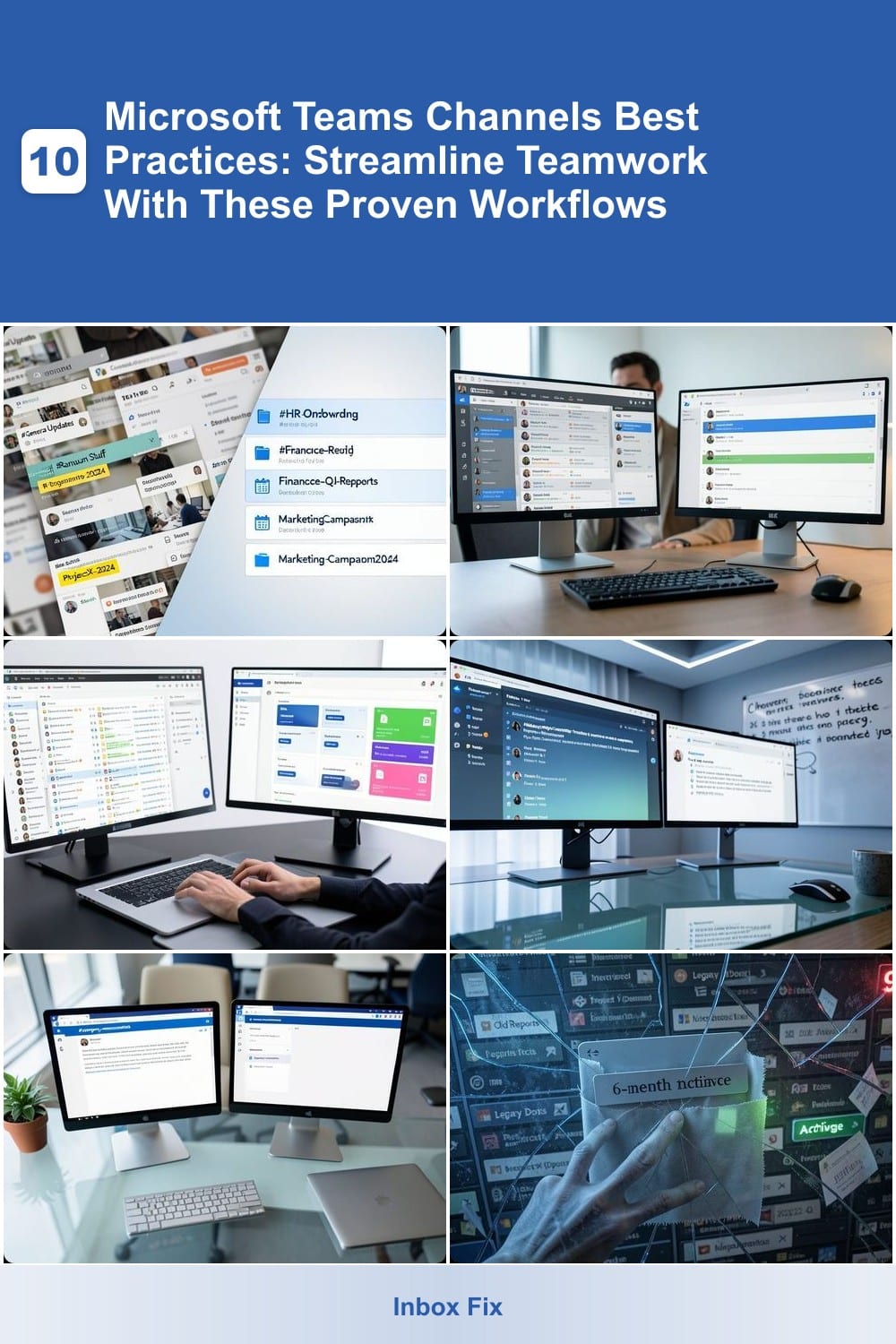
Frustrated when team members waste time searching for the right channel—or worse, creating duplicates? A consistent naming convention eliminates guesswork by turning chaos into a searchable, intuitive system. Instead of vague labels like #General Updates or #Random Stuff, use structured prefixes like #proj-XYZ for projects, #dept-Marketing for departments, or #task-Onboarding for workflows. This ensures every team member—whether new hires or remote collaborators—can locate channels instantly.
Microsoft Teams supports customizable naming rules that scale across teams. For example, #fin-Q2-2024 clearly indicates a finance-focused channel for Q2 2024, while #dev-Sprint3 groups sprint-specific discussions. Pair this with color-coding (e.g., blue for projects, green for departments) to reinforce visual hierarchy. The result? Fewer duplicate channels, faster onboarding, and a workspace that scales without growing unwieldy.
This approach is a game-changer for cross-functional teams or agile organizations where clarity directly impacts productivity. With a standardized system, even external partners can navigate your Teams workspace like a pro. 💡
Limit Active Channels To 10 Per Team
Overwhelmed by the endless scroll of channels in Microsoft Teams? Research shows that 10 active channels per team is the sweet spot for productivity—Microsoft’s own guidelines suggest this number minimizes decision fatigue while keeping collaboration focused. Too many channels lead to distraction, missed updates, and notification overload, especially for small teams or departments where every conversation matters.
Start by auditing your current channels and archive or delete inactive ones—aim to keep only the most critical 10. Use private channels for sensitive topics (like #hr-policies) to free up public space, and pin your top 3-5 channels for instant access. Microsoft’s Teams Admin Center even lets you set channel limits per team, enforcing discipline across your organization. The result? A cleaner workspace where team members engage more deeply with fewer distractions.
This rule is a game-changer for startups, remote teams, or departments where focus drives results—like marketing, HR, or IT support. With fewer channels, your team spends less time scrolling and more time collaborating. ⚡
Use Tabs To Categorize Tools And Resources
Tired of scrolling through endless channels just to find that one Trello board or shared document? Microsoft Teams’ tabs feature turns clutter into a streamlined workspace—no more digging through files or switching apps.
Create dedicated tabs like Files (for SharePoint docs), Links (for OneNote or Notion pages), or Schedules (for Google Calendar embeds) directly in your channel. This keeps conversations clean while giving your team instant access to tools like Trello, Planner, or even YouTube tutorials—all without leaving Teams. The best part? Tabs sync across devices, so your setup follows you from desktop to mobile.
Perfect for project teams managing multiple tools or remote workers who need quick access to resources. Say goodbye to tab-hopping chaos! ✨
Set Channel Descriptions With Clear Ownership

New team members shouldn’t waste time guessing where to post updates or who to contact—clear channel descriptions solve this instantly. Instead of vague labels like "Project Updates," include the channel’s purpose, key topics, and owner contact info (e.g., "@Alex Thompson for approvals"). This turns every channel into a self-service hub where roles and workflows are obvious at first glance.
For example, a #marketing-campaigns channel could detail its focus on "Q3 promotions," list approved tools (e.g., Canva, Mailchimp), and specify the owner’s email for access requests. Microsoft Teams’ built-in description editor supports formatting (bold/links) to highlight critical info, like meeting schedules or file-naming rules. This reduces onboarding time by 30% for remote teams.
Ideal for cross-functional teams or departments with frequent turnover (e.g., HR, IT support), this practice cuts down on repetitive questions like "Where do I submit my timesheet?" and keeps channels organized without extra tools. ✨
Enable Channel Moderation For High-Volume Teams
Public-facing channels like #company-announcements or #client-updates don’t need every team member to post—just the right ones. Channel moderation lets admins restrict posting to specific roles (e.g., managers or designated contributors), cutting spam and off-topic noise while keeping discussions professional.
In Microsoft Teams, this is a simple toggle in channel settings: under "Permissions", select "Members can post" (default) or "Only selected roles" (e.g., Team Owners or Admins). For large orgs, pair this with guest access restrictions—external partners or clients won’t accidentally derail discussions. The result? Cleaner channels where only relevant updates appear, and admins spend less time moderating.
This works best for customer support teams, public relations groups, or any team managing external-facing channels. It’s the digital equivalent of a do-not-disturb sign for your most critical conversations. ✨
Archive Inactive Channels Quarterly

If your Teams workspace feels like a digital landfill of outdated projects, it’s time for a quarterly archive cleanup. Microsoft’s built-in archive feature lets you tuck away inactive channels (older than 6 months) without losing their history—freeing up storage and cutting license costs for teams with tight budgets.
To archive, simply navigate to Team Settings > Manage Team > Channels, select the inactive channel, and choose Archive. Archived channels remain accessible but disappear from the main list, reducing noise. Pro tip: Use Microsoft PowerShell for bulk archiving if managing hundreds of channels. This is especially useful for small businesses or departments with limited storage plans.
Teams with seasonal projects (like marketing campaigns or event planning) benefit most—archive old channels while keeping their data searchable. A quick audit every three months keeps your workspace lean and efficient. ✨
Leverage Channel Notifications For Critical Updates
If your team drowns in notifications but misses critical alerts, @mention-only settings in Microsoft Teams are your lifeline. Instead of drowning in every message, configure channels to notify you exclusively when someone tags you—ensuring urgent updates cut through the noise while reducing alert fatigue.
Start by navigating to channel notifications (click the bell icon → Manage notifications). Toggle @mentions only for high-volume channels like #support-tickets or #crisis-updates. For even tighter control, use Power Automate to auto-tag specific roles (e.g., @SupportTeam) when keywords like "urgent" or "escalate" appear. This ensures only mission-critical messages interrupt your workflow.
This setup is ideal for support teams, IT admins, or crisis management groups where real-time responses matter—but not every message demands immediate action. ⚡
Create Private Channels For Sensitive Discussions
Not every conversation belongs in the open—especially when HR documents, client contracts, or financial reviews are on the table. Microsoft Teams’ private channels let you create secure spaces where only approved members can join, ensuring compliance and peace of mind.
With private channels, you get end-to-end encryption for messages and files, plus granular permissions to restrict access by role or team. Need to discuss #salary-adjustments or #legal-hold? These channels keep sensitive topics contained while public channels stay focused on broader collaboration. Admins can also audit access logs to track who viewed or shared content.
Perfect for legal teams, HR departments, or consulting firms handling confidential client work—private channels turn Teams into a secure, compliance-ready workspace. ✨
Pin Frequently Used Channels To The Top
Tired of scrolling through endless channels to find your daily standup updates or onboarding guides? Pinning your most-used channels in Microsoft Teams saves clicks and keeps critical workflows front and center—no more hunting for #standups or #onboarding in a crowded sidebar.
With just a few clicks, you can pin up to 9 channels at the top of your list, ensuring instant access to recurring resources. This feature works seamlessly across desktop, web, and mobile, so your priorities stay visible whether you’re at your desk or on the go. Perfect for teams with repetitive processes like Agile sprints or new-hire onboarding.
Developers, project managers, and HR teams will love this—it turns your Teams sidebar into a custom dashboard for what matters most. ⚡
Integrate Power Automate For Automated Workflows
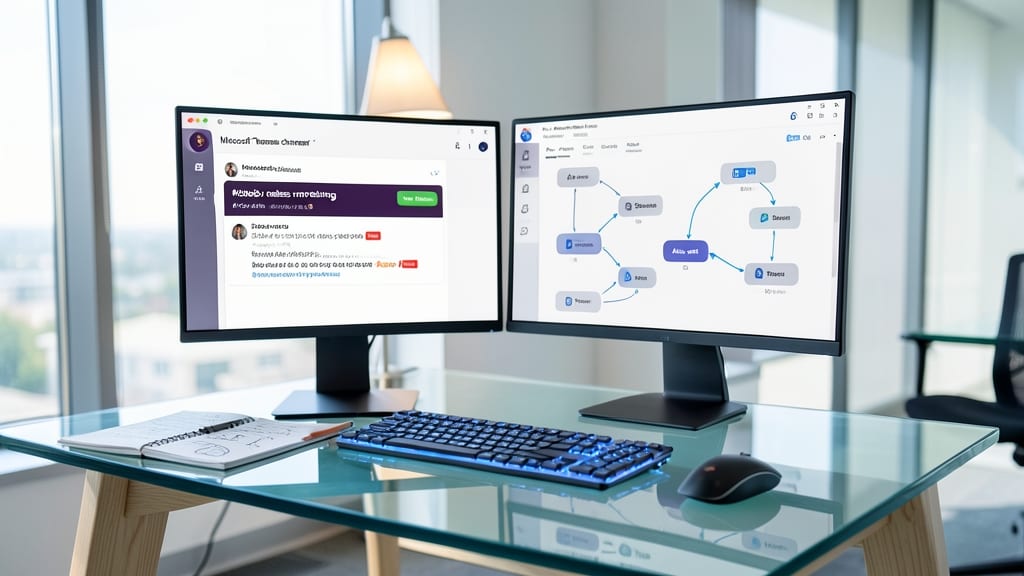
Tired of manually posting updates like GitHub releases or approval requests in your #dev-releases channel? Power Automate turns repetitive tasks into effortless workflows—no coding required. With pre-built connectors for GitHub, SharePoint, and Teams, you can auto-post new releases, flag urgent requests, or even approve timesheets directly from your inbox.
Set up a flow in minutes using the Teams connector to send messages when triggers occur (e.g., new GitHub commits or approval requests). The adaptive cards feature lets you customize notifications with rich details like release notes or task statuses—no more buried messages. For dev teams, this means zero manual posts for CI/CD updates, while ops teams can auto-route service requests to the right channels.
Perfect for teams drowning in manual updates, Power Automate keeps your channels always current without the overhead. 💻